
Websites & Domains
Bring a website online from one hosting workspace.
Add domains and connect website hosting, DNS and HTTPS inside the EzePanel User Panel. Keep the tools around each site close at hand, from files and PHP to email and backups.
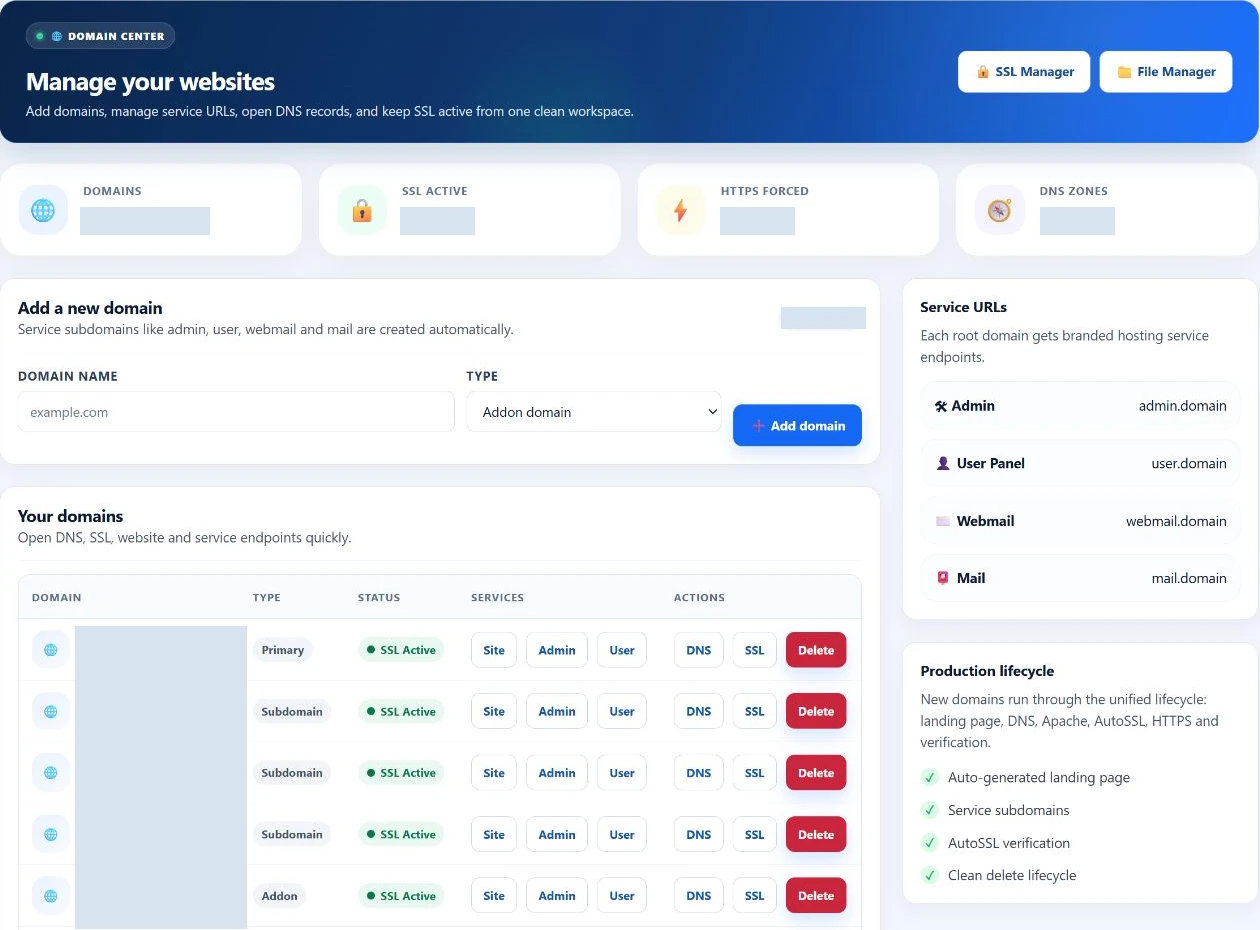
Make room for the next website
Start with the domain.
Choose the kind of domain you want to host. EzePanel prepares its assigned website directory, hosting configuration and managed DNS so you can continue with content and HTTPS.
Addon domain
Host another domain with its own assigned document root. Keep a separate website inside the same hosting account.
Subdomain
Add a site under a domain name, with its own assigned directory. Package limits and reserved service names apply.
Parked domain
Connect another domain to the primary site’s document root. It shares that site’s content rather than defining an arbitrary URL redirect.
Manage the domains connected to your hosting account.
See domain types, SSL state and service links in the domain list. The workspace also shows your domain allowance. Registration remains with your registrar; EzePanel manages the hosting configuration for the names you add.
Removing a domain can remove its routing, DNS, SSL and associated mailboxes and mail data. Review what depends on it and preserve needed data before deletion.
DNS alongside your website
Manage DNS where the website is hosted.
Work with the records behind your website, mail and domain verification. The zone editor supports record creation, editing, duplication and deletion, plus bulk TTL changes and zone import/export.
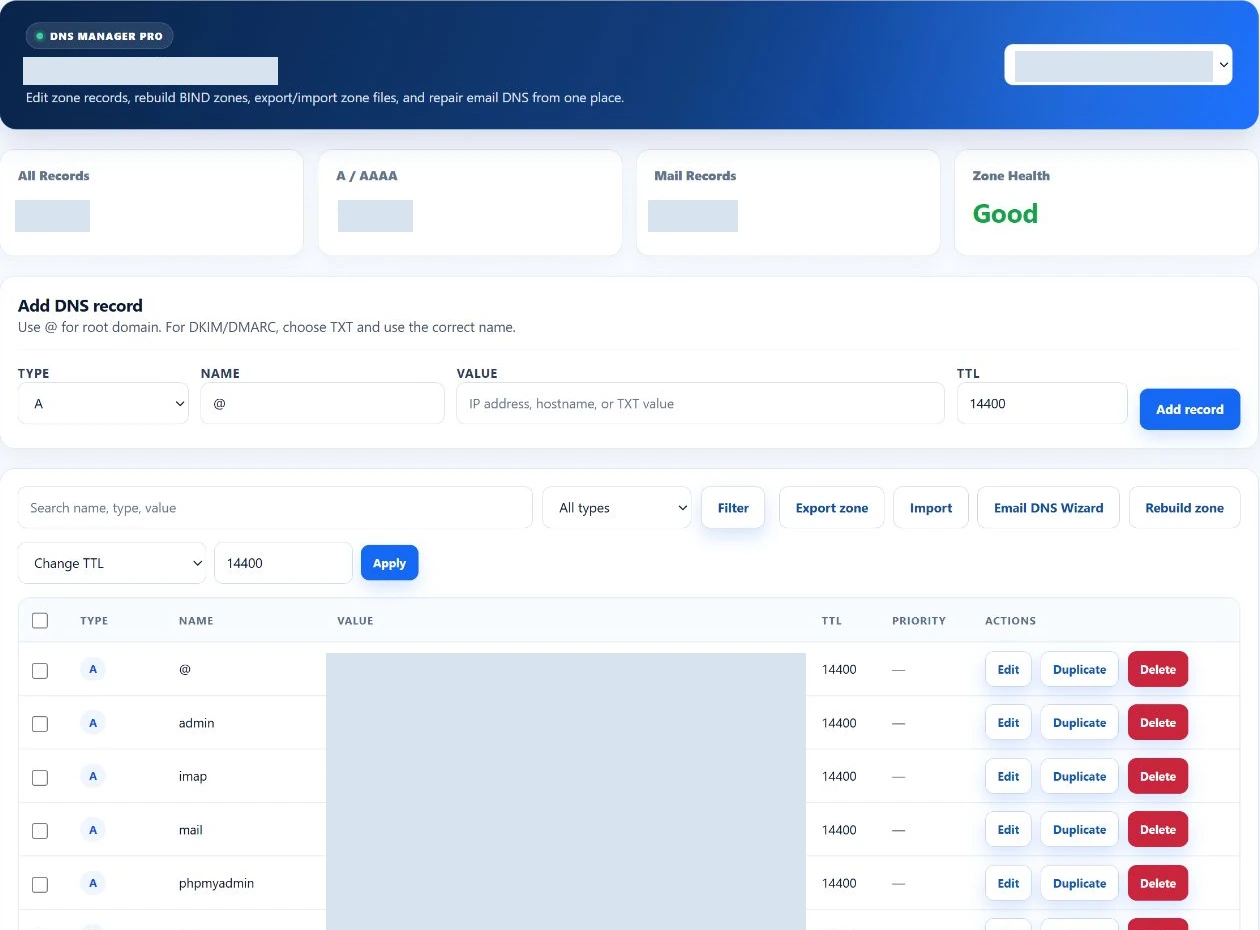
- A / AAAA
- Point a name to an IPv4 or IPv6 address.
- CNAME
- Point one DNS name to another.
- MX
- Identify where incoming email is delivered.
- TXT
- Publish verification and text-based domain settings.
- Authority matters
- Public DNS follows the authoritative provider. If DNS lives elsewhere, make the corresponding changes there.
Certificates & secure connections
Keep HTTPS visible.
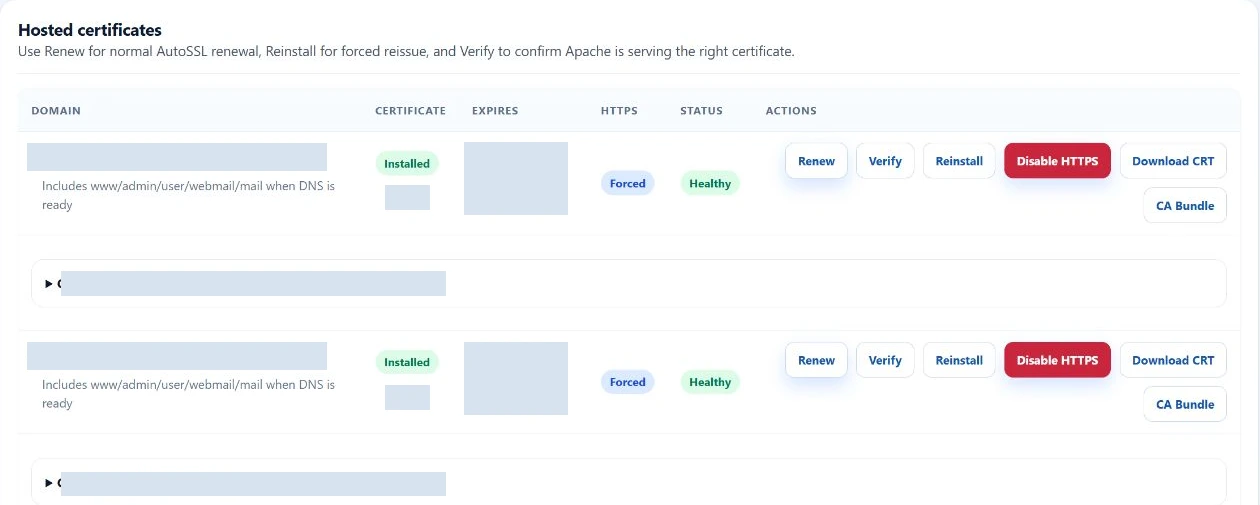
Review certificate state, expiry and hosted-name coverage. Where AutoSSL is enabled by your package, request installation, renewal or reinstallation and follow the resulting job.
Issuance, verification and redirection.
Use Verify to check HTTPS and Force HTTPS to redirect HTTP traffic to the secure connection. Certificate issuance depends on DNS, validation and certificate-provider requirements; a newly added domain may need another attempt once DNS is ready.
The website journey
One workspace across the website lifecycle.
The tools stay connected as a domain becomes a working site. Use each workspace for the part it owns, then check the public website and keep a suitable backup.
Add domain
Assign the hosted name and website directory.
Configure website
Prepare the content and application you want to run.
Set DNS
Point the required records at the hosting services.
Enable SSL
Request and verify HTTPS when validation is ready.
Manage the application
Work with files, databases and the domain’s PHP runtime.
Monitor & back up
Review account resources and maintain website backups.
Connected hosting tools
A domain is only the beginning.
Move from the site’s name to the tools that keep it useful. Availability and limits follow your hosting package.
Files
Upload and organize website content.
Databases
Manage the data behind your application.
PHP
Choose a runtime for each domain.
Create mailboxes on your hosted domains.
SSL
Review certificates and HTTPS.
Backups
Protect website files and database exports.
Cron
Schedule account-level tasks.
Changing DNS? Know what already depends on it.
Before moving nameservers, review website records, mail and MX records, verification records, subdomains and third-party services. Recreate what you still need at the new authoritative provider, then check the website and email after the change.
A few useful answers
Website questions.
How do I add a new domain?
Choose the domain type in Domains, enter the name and submit within your package allowance. EzePanel prepares the assigned website directory, hosting configuration and managed DNS. Domain registration and external DNS changes remain separate.
Do I need to change nameservers?
Only if you want to move authoritative DNS to the hosting provider. You can keep external DNS and update the required records there. Changes in EzePanel’s zone affect public answers only when that zone is authoritative.
Can I create subdomains?
Yes. The Domains form supports subdomains as well as addon and parked domains. Names must be valid and available, and package limits and reserved service names still apply.
Can I redirect a domain?
The SSL workspace supports Force HTTPS for HTTP-to-HTTPS redirection. These screens do not include a general domain-to-URL redirect editor. Parked domains share the primary site’s document root; they are not arbitrary URL redirects.
Can I manage DNS records?
Yes. The DNS workspace supports adding, editing, duplicating and deleting records, bulk TTL changes, and zone import/export. Supported types include A, AAAA, CNAME, MX and TXT.
How does AutoSSL work?
Where enabled by the hosting package, EzePanel can request certificates for hosted names and queue install, renew or reinstall actions. Issuance depends on DNS, validation and certificate-provider requirements. Review job results and verify HTTPS; issuance is not guaranteed to be instant.
Can multiple sites use different PHP versions?
Yes. Open MultiPHP to select an available runtime per domain. Account PHP options and administrator resource policies have separate scopes.
Your hosting, connected