
User Panel · File Manager & FTP
Work with website files.
Control who can reach them.
Use File Manager for everyday website content and archive work. Create separate FTP access when a client application needs it, with a directory rooted in your hosting account.
Explore file operationsSwipe to inspect · tap the image for full context
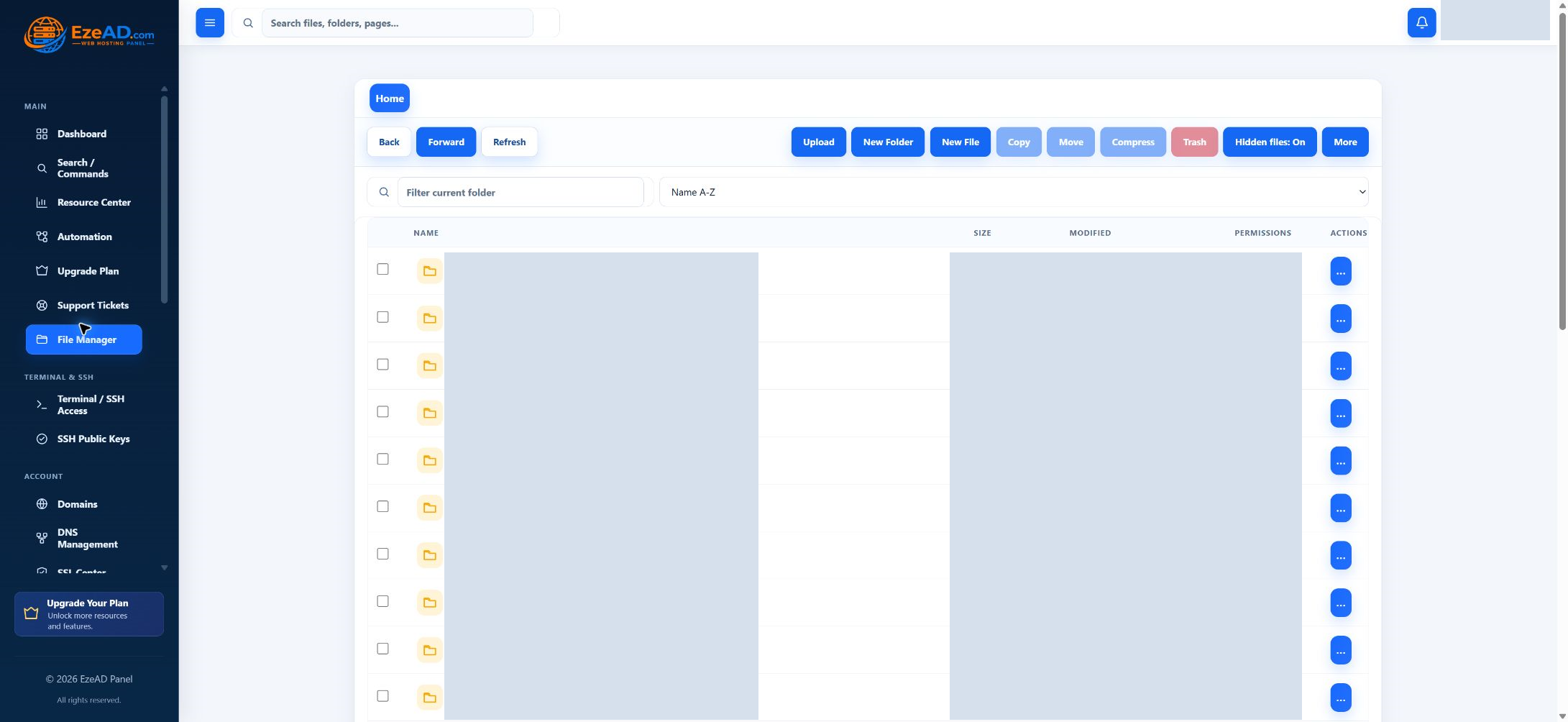
Browser file management
From a quick edit to a directory of files.
Find the right content
Browse folders, filter the listing and inspect file properties. Show hidden files when the task requires them; configuration files deserve the same care as visible website content.
Make a focused change
Create files and folders, rename items, preview supported content or edit a text file. Upload new content with the appropriate conflict choice and verify the final destination.
Organize larger work
Copy or move selected content, create an archive, extract a supported archive or request a checksum. Background jobs keep substantial file operations separate from a quick page request.
Background operations
Follow the operation through to its result.
For example, extracting a website archive is more than selecting a file. Choose the destination deliberately and read the result before directing visitors to its contents.
Confirm the target
Check the source items, destination and overwrite choice. Preserve anything that the operation may replace.
Let the job run
Supported larger operations enter the account’s job workflow. Acceptance means the request was queued, not that every file has changed.
Read the outcome
Review completion or errors. Permissions, storage and worker availability can interrupt the operation.
Check the website
Inspect the destination and test the application. Correct files can still need matching database data or runtime settings.
Separate FTP access
Give the transfer its own access.
Use an FTP account for the client workflow that needs it. Keep the panel login separate, and choose a directory appropriate to the work.
- Create the account
- Set a valid FTP username and a password meeting the required length. Select a root inside the hosting account’s home, using the website directory needed by the client.
- Connect with provider settings
- Use the host, connection mode and other settings supplied by the hosting provider. The provider maintains the FTP service and its network configuration.
- Review the access
- The account list shows the FTP identity, directory and enabled state. A stored quota value is not a substitute for checking available account storage.
- Retire it deliberately
- Disable access when it is no longer needed, or remove the obsolete FTP account. Review the website files separately; removing an access entry is a different task from deleting content.
Permissions and recovery
A file action can change the running website.
Permissions are application settings
Use permission changes for a specific requirement. Broad write access is not a general fix for a website error; ask the provider when ownership or server policy needs investigation.
The file workspace operates within the hosting account. It does not provide unrestricted access to the server filesystem.
Recovery needs a usable copy
Keep an independent recovery copy before consequential edits, replacement or permanent deletion. Trash and a checksum serve different purposes from a complete recovery plan.
Coordinate website files with database data when restoring an application. File Manager does not restore database state merely by extracting a website archive.
Frequently asked questions
File and FTP questions.
Do I need FTP to use File Manager?
No. File Manager works in the User Panel. FTP is a separate connection method for a compatible client and an enabled FTP account.
Can an FTP account point anywhere on the server?
The root must be within the hosting account home. Choose the directory needed for the task and keep server administration with the provider.
Does a queued file operation mean the work is finished?
No. Larger operations run as background jobs. Read the final result and verify the destination before relying on the change.
Is Trash the same as a backup?
No. Keep an appropriate independent recovery copy before consequential edits, replacement or permanent deletion. Website files and database data require coordinated recovery.
Your hosting workspace