
User Panel · Terminal & SSH
Work at the command line,
within your hosting account.
Use an enabled browser terminal or your own SSH client for application maintenance. See the account identity and shell policy before connecting, and manage public keys without sending private keys to the panel.
Explore connection methodsSwipe to inspect · tap the image for full context
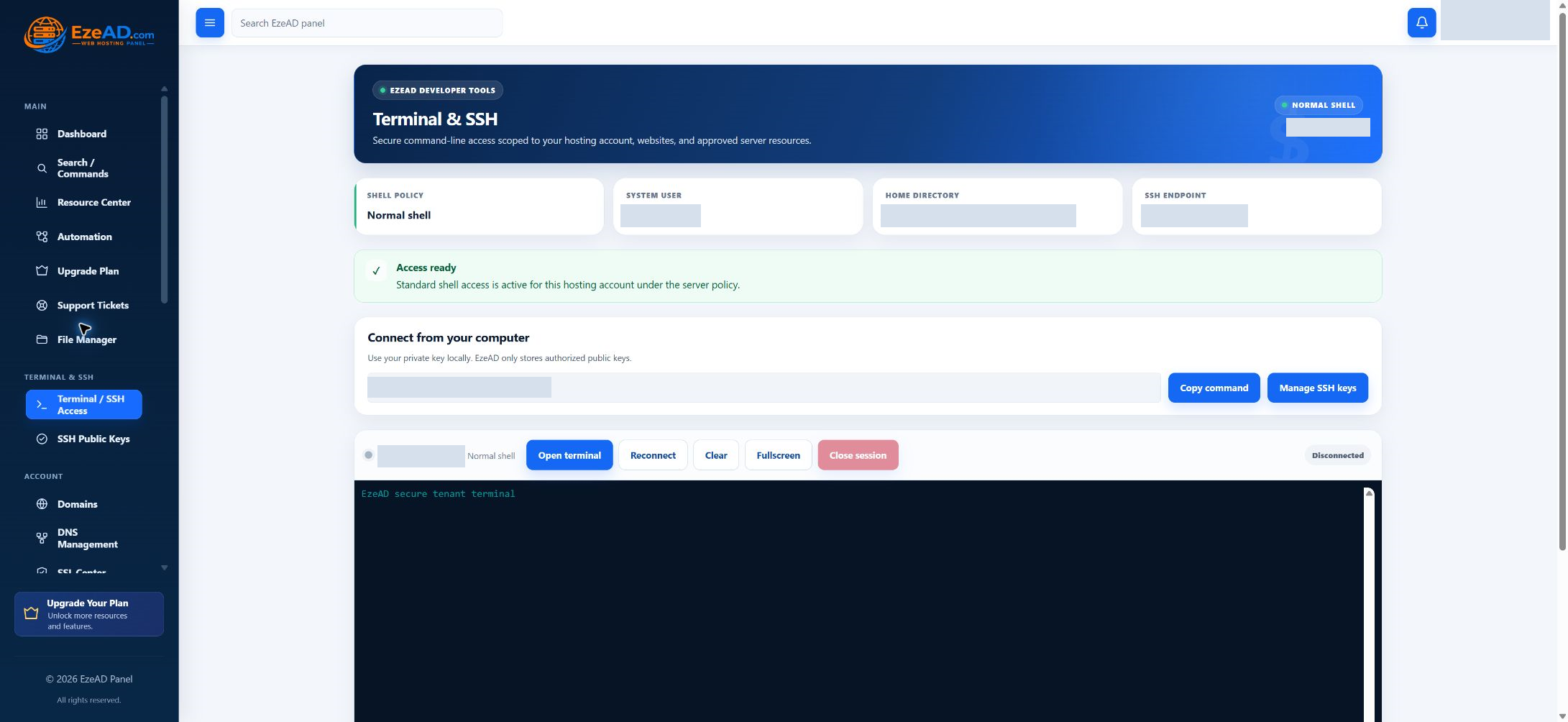
Choose your connection
Two connection methods. One hosting identity.
Browser terminal
Open the terminal from the User Panel where your provider enables it. The workspace shows connection state and offers reconnect, clear display, full screen and close-session controls.
The terminal broker checks the account and policy. Seeing the workspace is not proof that a session has connected; read the actual connection result before entering commands.
Your own SSH client
Use the connection details shown for your hosting account with an SSH client on your device. Import and authorize the public key through the enabled key-management workspace.
Shell access, browser-terminal access and key management have separate policy checks. Availability of one method does not automatically enable the other.
Provider-controlled access
Know the shell policy before running a command.
Ask the provider
Command-line access is unavailable. Explain the application task to the hosting provider instead of trying to bypass the account policy.
Work within the environment
Available paths and commands are constrained by the account environment. Confirm the tools and runtime needed by your application are available.
Retain account authority
Use the hosting account’s system identity under the server’s policy. Normal shell does not mean root or unrestricted server administration.
Where enabled, an active jailed account can request normal shell with a reason. The provider reviews the request; submitting it does not change the policy.
Key lifecycle
Public keys in the panel. Private keys on your device.
Use a key for a device you trust. The panel accepts supported OpenSSH public keys and records their algorithm, fingerprint, comment, date and authorization state.
Import and authorize
Paste one public key in the enabled key-management workspace. Keep the private key protected locally.
Review the fingerprint
Identify the device or operator the key belongs to. Avoid leaving anonymous or obsolete access in the list.
Pause or remove access
Deauthorize a key when it should no longer authenticate, or delete an obsolete managed key. Review other active sessions separately.
Connection troubleshooting
A connection problem has a specific owner.
- Policy or account state
- Confirm that the hosting account is active and the intended connection method is enabled. The provider controls shell modes and feature overrides.
- Broker or session availability
- A browser terminal depends on its server broker and the configured session limits. Share the error and time with the provider if opening fails.
- Identity and key authorization
- Use the correct hosting username and endpoint. Check that the matching public key is authorized; never send the private key as troubleshooting evidence.
- Command and application environment
- Confirm the current path, available interpreter and target application. Preserve a recovery copy before consequential file or database changes.
Idle time, maximum lifetime and concurrent browser sessions follow administrator policy. After a permitted change, verify the application and close the session when the work is finished.
Frequently asked questions
Command-line access questions.
Does normal shell give me root access?
No. Normal shell uses the hosting account’s system identity. Server administration remains with the provider.
Does SSH access automatically enable the browser terminal?
No. Shell mode, browser terminal and SSH-key management have separate policy checks. Ask the provider which methods are enabled.
Can I upload my private key?
No. Import the public key only. Keep the private key protected on your device and use it with your SSH client.
Can I request normal shell from a jailed account?
Where the provider enables requests, an active jailed account can send a reason for review. The request does not grant access automatically.
Connected hosting