
Email & Webmail
Manage business email from the same place you manage your website.
Create mailboxes for your domains, manage passwords and storage allowances, check email authentication and open hosted webmail from the EzePanel User Panel.
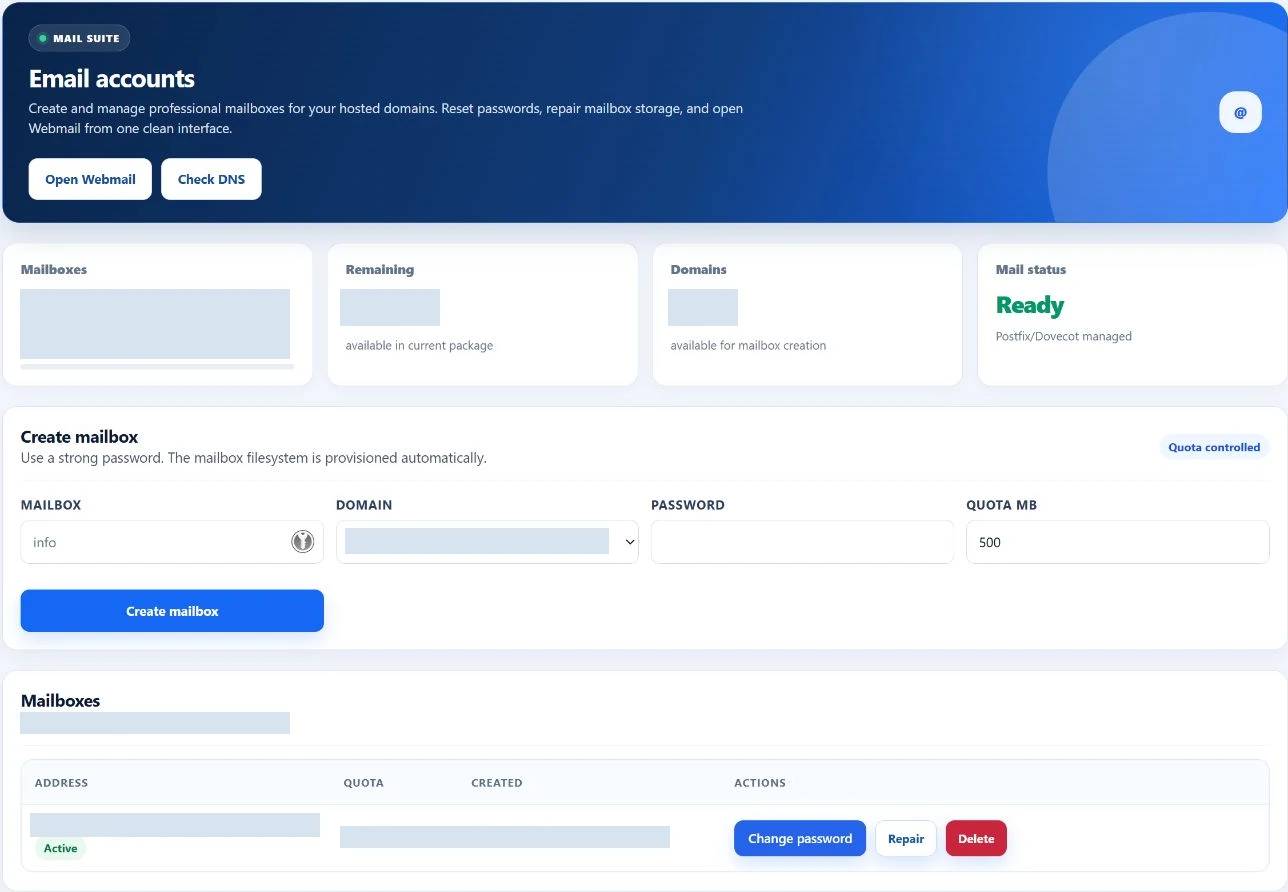
Your domain. Your email.
Create and manage mailboxes for your domain.
Give your business an address on a domain you host. The mailbox list keeps addresses, quotas and everyday actions together, so routine email administration stays close to the website.
Create a mailbox
Choose a hosted domain, enter the address and password, and set its storage quota. Your hosting package defines the mailbox allowance.
Change a password
Reset an individual mailbox password without changing the panel login. Reconnect mail apps with the new credentials.
Repair mailbox storage
Use Repair to restore the standard mailbox folder structure when it needs attention. This is a maintenance action, not a recovery of deleted messages.
Remove an old mailbox
Delete an address you no longer need. Deletion removes its mailbox data, so preserve any messages you need first.
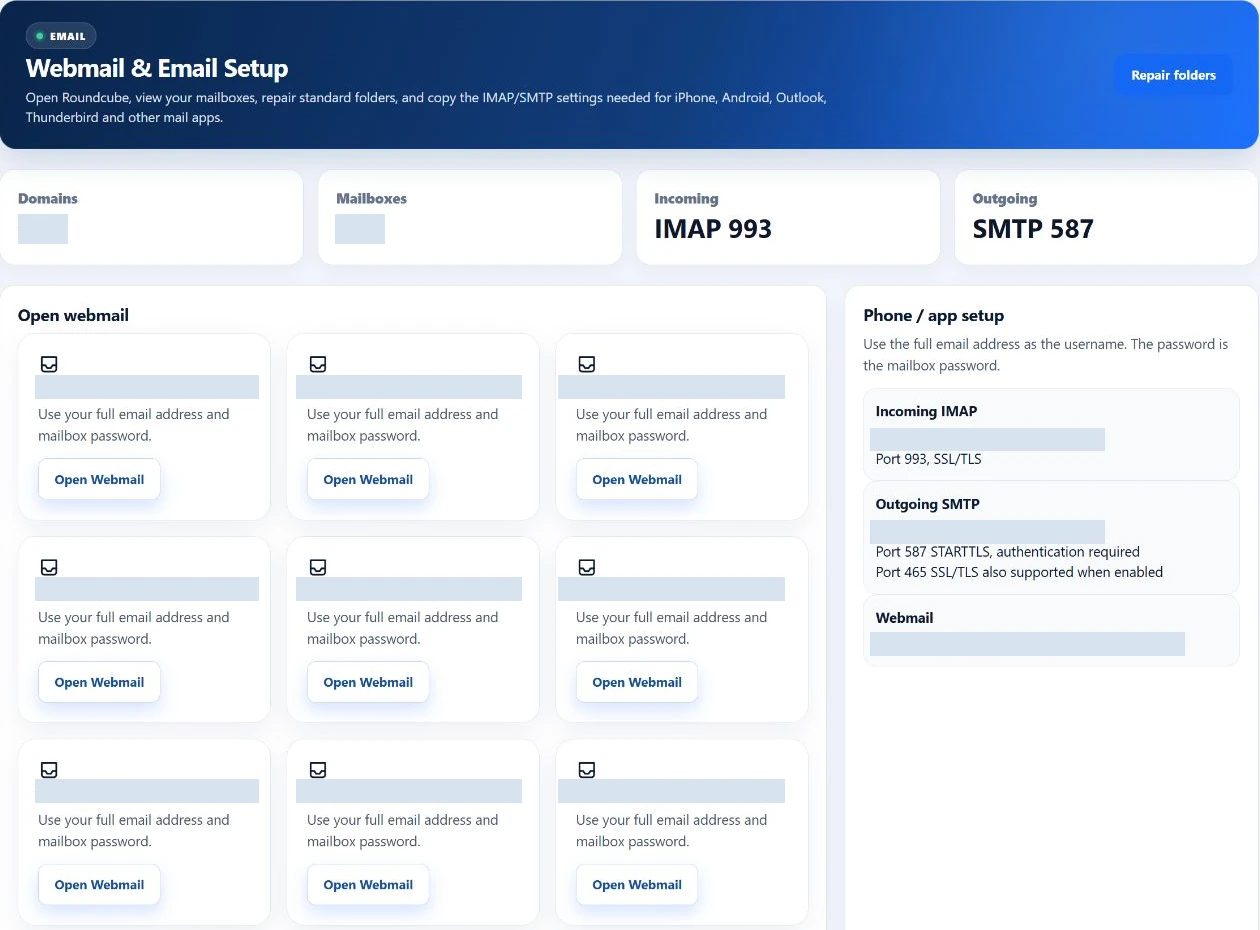
Browser or mail app
Open your inbox without another control panel.
The Webmail workspace brings your domain’s Roundcube link and connection details together. Roundcube is the hosted email client; EzePanel is where you manage the mailbox.
Use the full email address and its mailbox password to sign in. For Outlook, Apple Mail or another IMAP client, copy the server name from the setup panel.
Your provider may also enable SMTP over TLS on port 465. Use the settings supplied for your server.
Email authentication
Keep the technical side of email visible.
See the DNS records that help other mail systems recognize your domain. Delivery checks bring mail routing, authentication and server identity into one view.
Who can send
Identify the servers allowed to send mail for your domain.
A verifiable signature
Help recipients verify that a message was signed for your domain.
Policy and reporting
Describe how receivers should handle authentication failures.
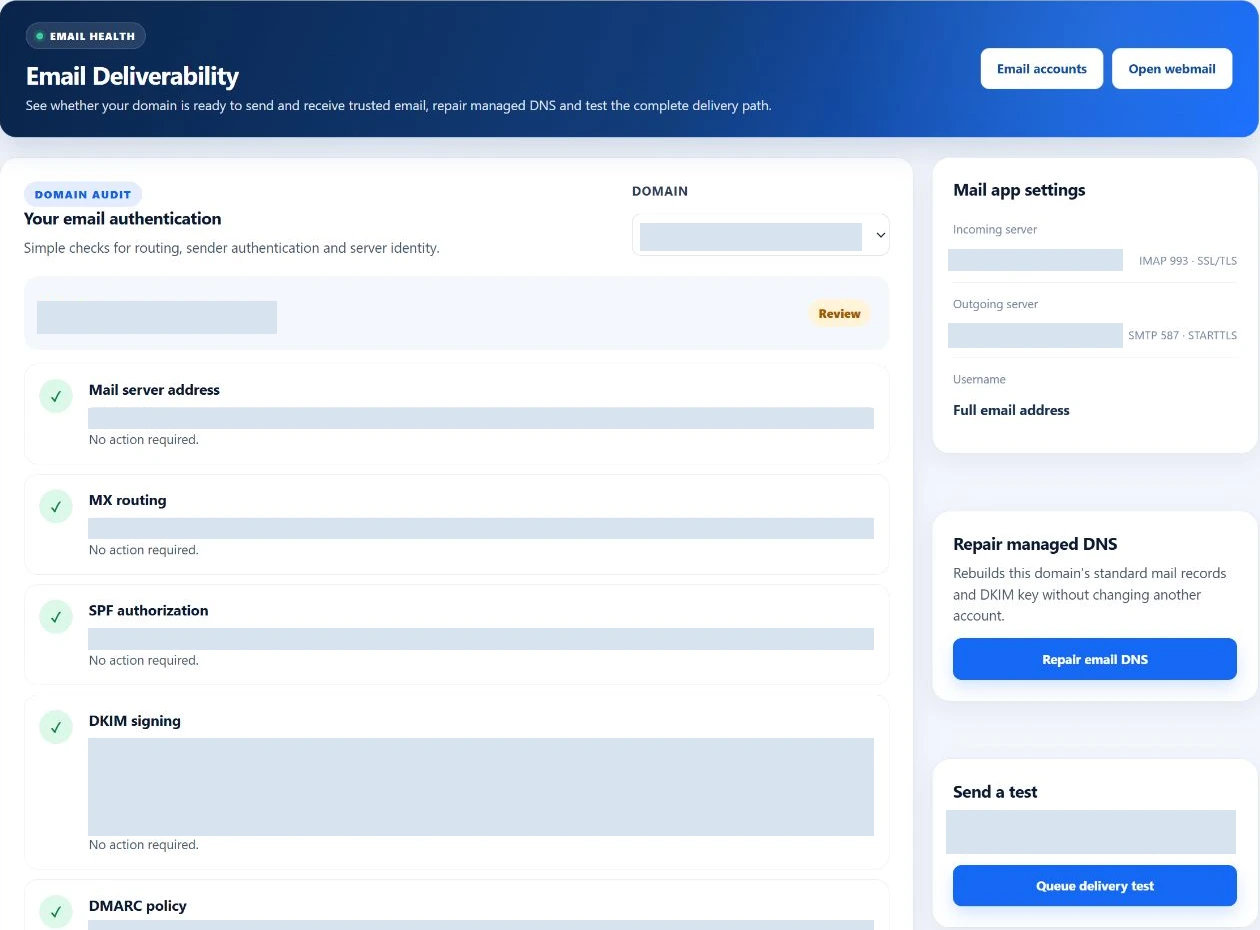
Useful checks, with a clear next action.
Review mail-server A, MX, SPF, DKIM, DMARC and reverse-DNS checks. Repair supported records in managed DNS, or take the required changes to your external DNS provider. Your hosting provider handles server-level mail configuration and PTR records.
A connected mail workflow
From your domain to your inbox.
Start with the domain you host, create the mailbox, check its delivery settings, then choose how you want to read and send messages.
- Hosted domain
- Email account
- Delivery settings
- Webmail or mail app
Protect access. Keep delivery in context.
Keep mailbox passwords private and update connected apps after a reset. Use the documented encrypted client connections; your hosting provider maintains the mail service and its certificates.
Operational notes
Delivery checks may use local records when public DNS has no answer. A green check is not proof of global propagation or inbox placement. Test-message queuing and recent delivery history concern the account’s registered email address, not every mailbox. Changing local DNS does not update an external authoritative zone.
A few useful answers
Email questions.
Is my mailbox password the same as my panel password?
Mailboxes have their own passwords. Sign in to webmail or a mail client with the full email address and that mailbox’s password. Changing a mailbox password does not change your panel login.
How do I access webmail?
Open the Webmail workspace and follow the domain’s Roundcube link. Sign in with your mailbox credentials; opening the link does not automatically sign you in.
Can I forward email to another address?
The current User Panel screens covered here do not include forwarder or autoresponder controls. Ask your hosting provider about any separately supported options.
How do I reset a mailbox password?
Use Change Password beside the mailbox in Email Accounts. Update the saved password in every connected mail app afterward.
What are SPF, DKIM and DMARC?
SPF identifies permitted senders, DKIM adds a verifiable signature, and DMARC defines policy and reporting for authentication failures. EzePanel shows related DNS checks; correct records alone do not guarantee inbox delivery.
Can I use Outlook, Apple Mail or another client?
Yes, with an IMAP/SMTP-capable client. Use the server name shown in Webmail, IMAP port 993 with SSL/TLS, and authenticated SMTP port 587 with STARTTLS. Port 465 is an option only where your provider enables it.
Your hosting, connected