
Give WordPress a hosting stack you can understand.
Connect PHP, MySQL, SSL, backups and account resource controls around the site. Investigate the hosting environment while keeping WordPress application management explicit.
Explore the workflow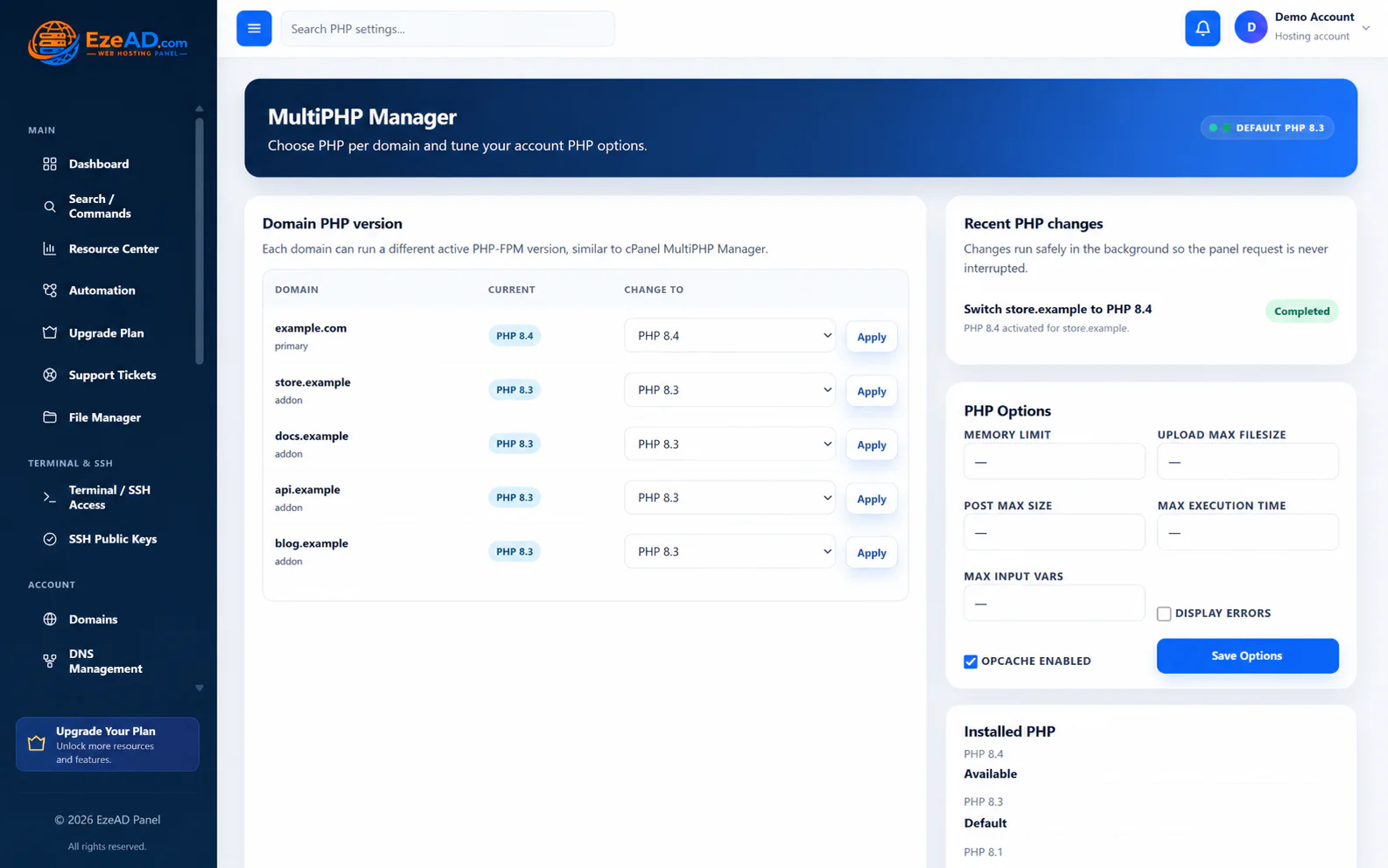
A slow or unavailable WordPress site can involve PHP workers, database connections, application code, certificates or resource pressure. A useful hosting stack makes those dependencies easier to inspect.
Choose compatible PHP and database settings.
Use the available PHP versions and permitted configuration for the domain. Create the owned MySQL database and application user, then configure WordPress with the correct connection details.
Compatibility still depends on WordPress, themes and plugins. Changing the PHP version or increasing workers does not itself repair application code. Test the site’s important paths after a change.
Connect security and public reachability.
Confirm DNS delegation, SSL coverage and HTTPS behavior. Account sign-in controls and the provider’s security tools protect different layers from WordPress’s own users, plugins and permissions.
AutoSSL issuance is separate from forcing an HTTPS redirect. Verify the public site and mixed-content behavior. A hosting security score or bounded scan does not guarantee that WordPress is free of malware.
Protect both the files and the data.
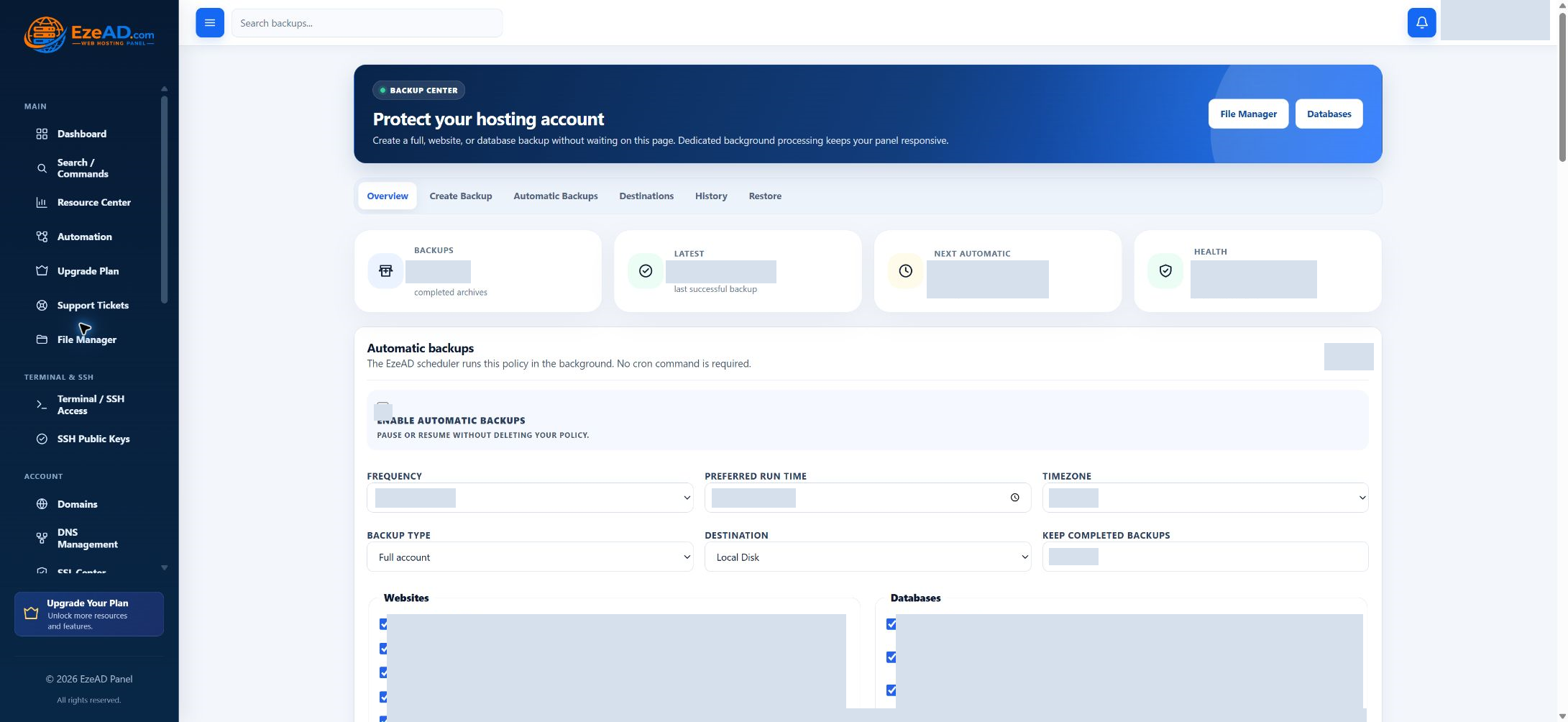
Keep a matching recovery copy of site files and the WordPress database. Current backup workflows support selected website and database coverage, schedules and eligible destinations.
The customer file-restore action does not automatically restore SQL. Plan database import separately and account for orders, comments or other writes that occurred after the backup. Archive integrity is not a full WordPress recovery test.
Investigate performance across the stack.
Review PHP-worker use, account resource limits, database connections and provider-visible server health. Redis can be part of the configured account environment where the provider supports it.
A running Redis service does not prove that WordPress uses object caching. Application configuration is still required. Performance depends on the application and its configuration; plugin optimization remains an application task.
A connected workflow
- Configure the hosting stack
- Connect WordPress data
- Verify DNS and HTTPS
- Protect files and SQL
- Investigate workload changes
WordPress Toolkit is the next layer.
Discovery, installation, updates, staging, cloning and plugin/theme management are planned toolkit capabilities. They are separate from the hosting tools described on this page.
Explore the WordPress roadmapA practical scenario
Investigate the change around the site.
Example: a plugin change is followed by slow requests. Preserve evidence, review PHP workers and account pressure, examine application behavior and use a deliberate rollback or correction appropriate to the site.
A clearer view of the hosting dependencies around WordPress, with recovery coverage and operating boundaries you can explain.
Frequently asked questions
Questions about this solution.
Is WordPress Toolkit available now?
WordPress Toolkit is Planned. Discovery, installation, staging, cloning and centralized plugin/theme management are not presented as current built-in workflows.
Is Redis automatically configured inside WordPress?
No. Provider-supported Redis availability and WordPress object-cache integration are separate steps.
Does a file restore also restore the WordPress database?
No. The customer file-restore workflow does not automatically import SQL. A recovery plan must include the matching database and account for newer writes.
Explore the connected tools
Plan your next step
Discuss your WordPress hosting stack.
Explore the software plans and commercial launch information, or discuss the requirements of your server and customers.