
EzePanel · Support tickets
Support conversations connected to hosting operations.
Give hosting customers a place to explain the issue. Keep the provider’s response, supporting files and next step in the same conversation.
The support workflow
Customer conversations
- Request
- Reply & context
- State & history
The customer and provider return to the same conversation. The ticket state makes the next responsibility visible.
A connected conversation
From the first question to the next response.
Open a request
The customer adds a subject, category, priority and the issue details.
Review the context
The administrator opens the request and reads the conversation.
Reply with a next step
Messages, attachments and timestamps stay together.
Continue the conversation
A customer reply returns the request to administrator attention.
Close and retain history
The administrator selects the closed state when the conversation is complete.
A useful first message
Start with useful context.
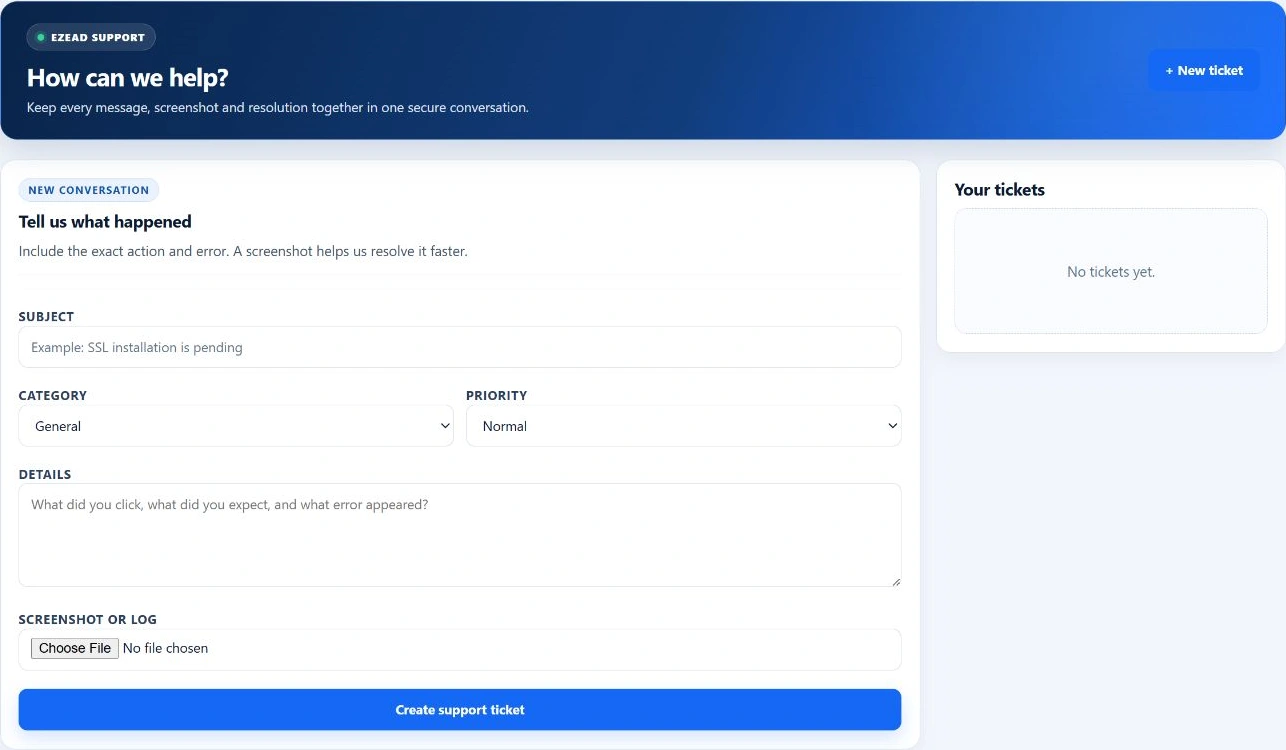
The customer opens a request from their own User Panel. A clear subject and description help the provider understand what needs attention.
- Subject, category and reported priority
- Expected behavior and the observed error
- An optional screenshot or log, up to 5 MB
Use the request form to explain the issue before starting the conversation. Keep passwords and private keys out of messages and files.
Swipe to inspect · tap the image for full context
Two roles, one thread
The conversation has two sides.
The customer
Opens a request, reviews their own tickets and adds a reply while the conversation remains open. Replies and timestamps stay available in the thread.
Customer support toolsThe administrator
Reviews the queue, reads the original message and replies, adds a response or attachment, and chooses the next ticket state.
Administrator support toolsVisible responsibility
Know who needs to respond next.
A new request starts with administrator attention. Replies move the conversation forward without losing the original context.
- Waiting for admin
- A new request or customer reply needs the provider’s attention.
- Waiting for customer
- The administrator has replied and is waiting for follow-up.
- Open
- The conversation remains active.
- Resolved / closed
- The administrator has closed the conversation; its history remains available.
Inside the administrator workspace
A queue for the next conversation.
Open a ticket to review it and respond. This authentic capture shows the desk before tickets have been added; the workflow above explains how populated conversations are handled.
Swipe to inspect · tap the image for full context

An example in daily operations
Bring the investigation back to the customer.
A customer reports a website problem and includes the time and visible error. The administrator reads the request, then opens the relevant account, SSL or Monitoring tools to investigate.
The response explains what was checked and asks the customer to try again. The administrator can close the conversation once the support exchange is complete.
This is an illustrative operator-led workflow. EzePanel does not automatically correlate a ticket with an incident or repair the website because a ticket was closed.
Explore MonitoringYour hosting provider owns the response.
Hosting customers normally contact their provider. EzePanel software support is a separate relationship with its own support channel.
Find the right supportPlan changes have their own outcome.
A hosting-package request goes through provider review and application. Approval alone does not complete payment or activate a new resource allowance.
Account and package requestsCommon questions
Clear expectations for support.
Does choosing Urgent guarantee a response time?
No. Priority communicates impact; response arrangements belong to the hosting provider.
Can I send credentials in the ticket?
Keep passwords, private keys and recovery codes out of messages and attachments. Use sanitized evidence and an agreed secure access process if access is required.
Does every ticket reply send an email?
Do not assume that from the ticket record. Notification configuration, event handling and delivery are separate; follow the conversation in the panel.
Does an approved upgrade request prove the new limits are active?
No. Approval, application and effective-policy verification are separate stages. Read the result and check the account.
Keep the next step connected