
User Panel · Databases & phpMyAdmin
Give your application
a database of its own.
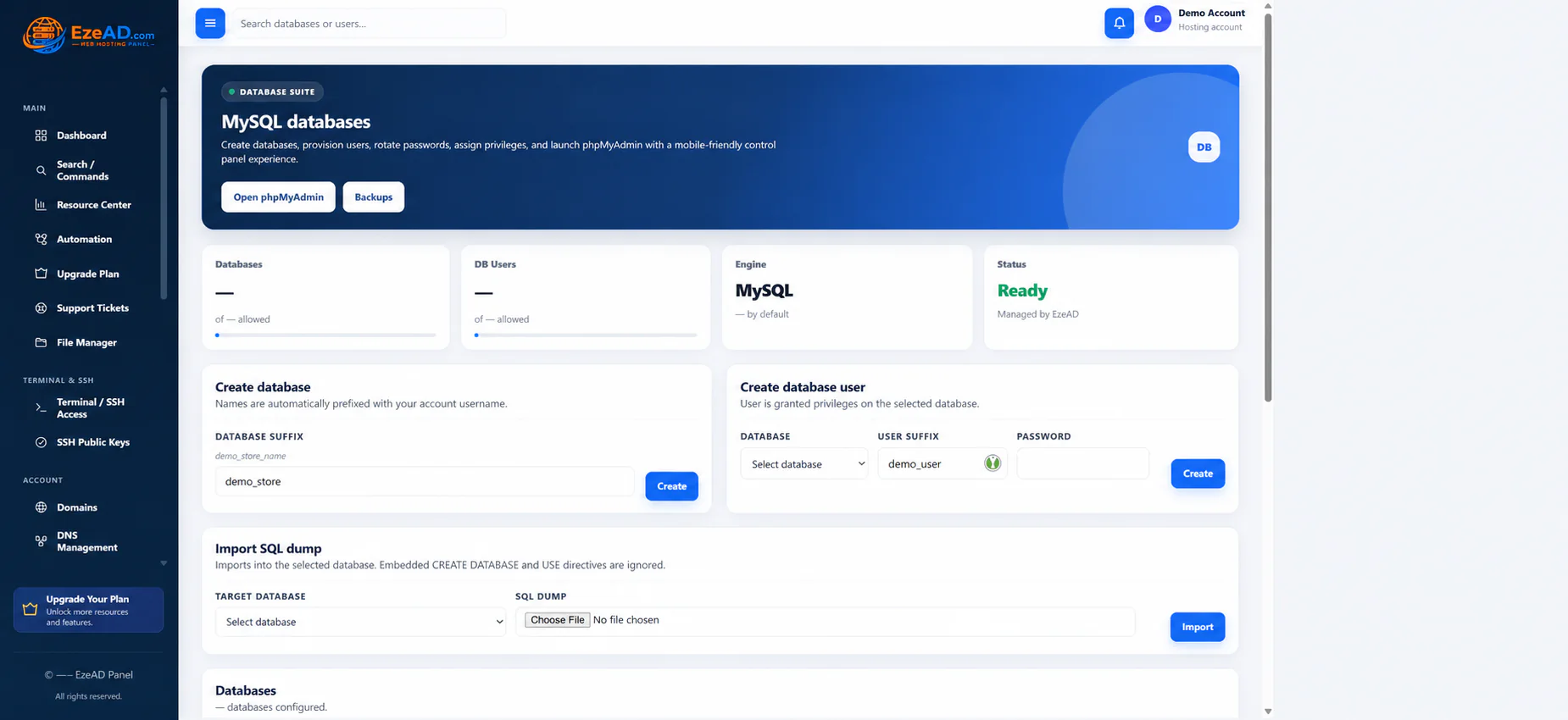
Create account-owned MySQL databases, assign application users and open phpMyAdmin through the hosting panel. Keep the database, its credentials and its recovery copy connected to the website that uses them.
Explore database managementSwipe to inspect · tap the image for full context
Application data
A database, a user and the application that connects them.
Creating storage and granting access are separate tasks. EzePanel keeps the account identity in the database names and checks the selected database before assigning a user.
Create the database
Choose a valid suffix. The resulting name includes the hosting account prefix, so use the full name when configuring the application.
The workspace shows database count, size and creation date. Package allowances limit how many databases you can create.
Assign an application user
Select an owned database, enter a user suffix and choose a password meeting the required strength check. The new user receives ALL privileges on that selected database.
This flow does not present a fine-grained privilege editor. Database-user counts and connection policy are separate constraints.
Connect the application
Use the full database name, assigned username, password and provider-supplied connection settings in the application configuration.
Keep credentials out of public files and support messages. Test the application’s actual connection after configuration.
SQL import
Bring existing data into a deliberate target.
Import is a data-changing operation. A selected database may already contain live application information, so agree the target and recovery plan before proceeding.
The upload accepts .sql and .sql.gz files up to 120 MiB at the application check. Server upload limits may be lower; ask the provider when the file exceeds the available path.
Preserve the current state
Keep a usable database copy and the matching application files. Plan the impact on visitors and incoming writes.
Select the owned database
Choose the intended target from the account list. Embedded CREATE DATABASE and USE directives are ignored so the import stays directed at the chosen database.
Read the import outcome
Check the result before repeating an upload. A failure is not a promise that every change was rolled back. Share the error and time with the provider when needed.
Verify data and application
Inspect the expected data and test the website. Imported tables, application configuration and PHP compatibility all contribute to a working result.
phpMyAdmin
Open the database workspace with account scope.
Launch phpMyAdmin from the customer database tools when you need its database-administration interface. At least one owned database is required for the account-wide launch.
Access follows ownership
The launch workflow builds access from the account’s database list and refreshes its grants. It does not give the hosting customer server-wide database authority.
A short-lived launch authorization connects the authenticated panel session to the database tool. The underlying SQL credential is managed separately by the server.
The provider maintains the service
phpMyAdmin availability depends on the installed service and launch broker. If opening fails, confirm that the account has a database, then contact the provider with the error and time.
Do not send database passwords to troubleshoot the launch. Use the account’s support path and keep sensitive exports private.
Credentials and lifecycle
Change access with the application in mind.
Rotate a password
Update the database-user password and coordinate the matching application configuration. An application still using the previous password may lose its connection.
Remove an unused user
Confirm which applications use the identity before deleting it. The database and its contents are a separate resource from the user that connects to it.
Retire a database
Deleting a database removes its data and assigned users through this workflow. Preserve the needed exports and verify the target; there is no promised undo button.
Frequently asked questions
Database questions.
Can I manage other accounts’ databases?
No. Customer tools target databases belonging to the authenticated hosting account; server administration stays with the provider.
Does creating a user offer a detailed privilege editor?
This workflow grants the new user access to the selected database with ALL privileges. It is not a granular privilege-selection interface.
Does Restore files recover the SQL data?
No. The website file restore is separate from database import. Coordinate the matching data and files, then verify the application.
What should I do before importing into a live database?
Preserve a recovery copy, confirm the target and plan the application impact. An import can change existing data; do not assume an error automatically restores the previous state.
Connected application care
Keep application data and website files together.
A recovery plan needs the right data, the right files and a compatible runtime. Connect the database workflow to the rest of the hosting account.