
Backups & Restore
Protect websites and databases without leaving EzePanel.
Create, schedule and track hosting-account backups in the same workspace as your hosting tools. Recover supported website files and keep database exports ready for your recovery plan.
Swipe to inspect · tap the image for full context
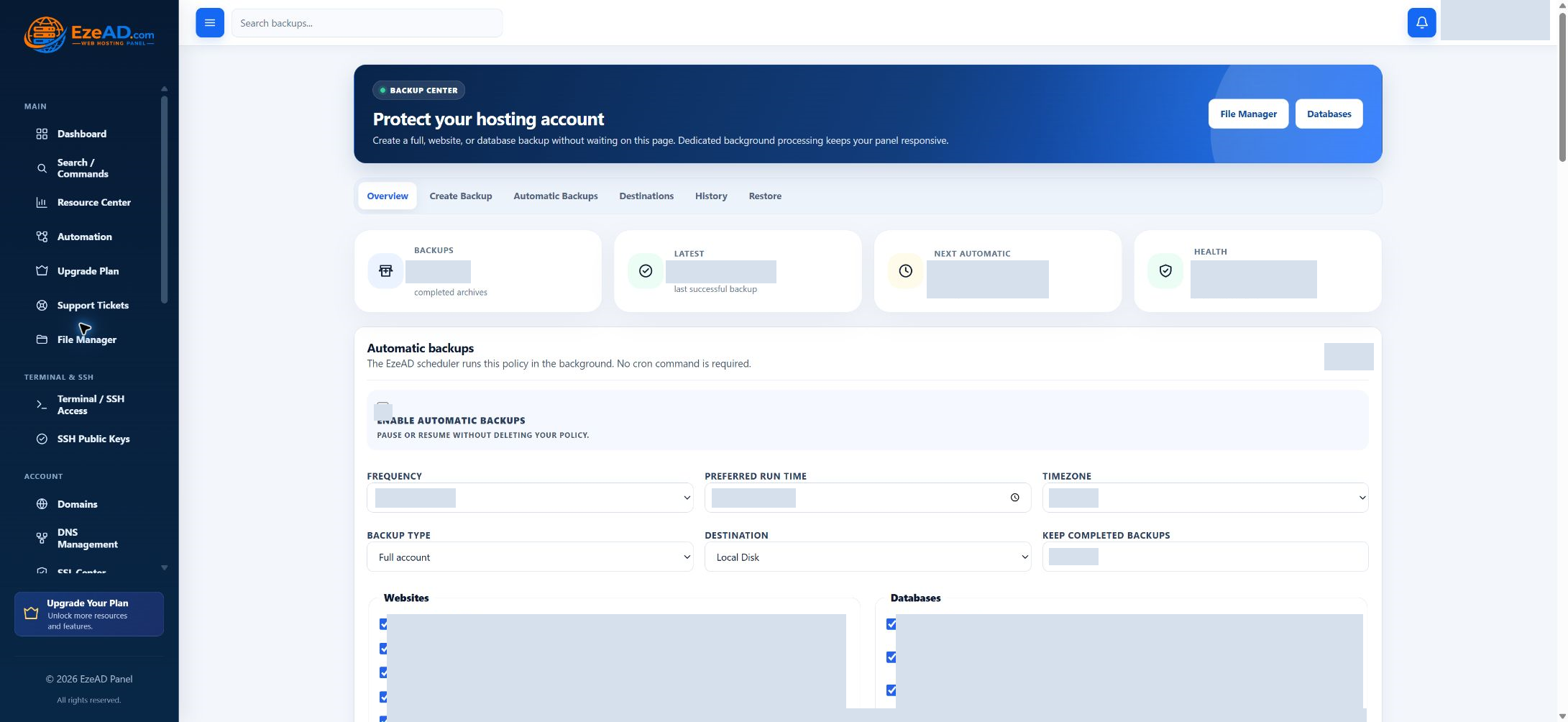
Choose what to protect
Back up the parts of the hosting account that matter.
Website files
Select the account’s websites and collect their managed content into an archive.
Database exports
Include selected account databases as SQL dumps, or run a database-only backup.
Combined account backup
Bring selected website files and database exports together with an account manifest.
Account backups cover the selected hosting data—not a full-server operating-system image.
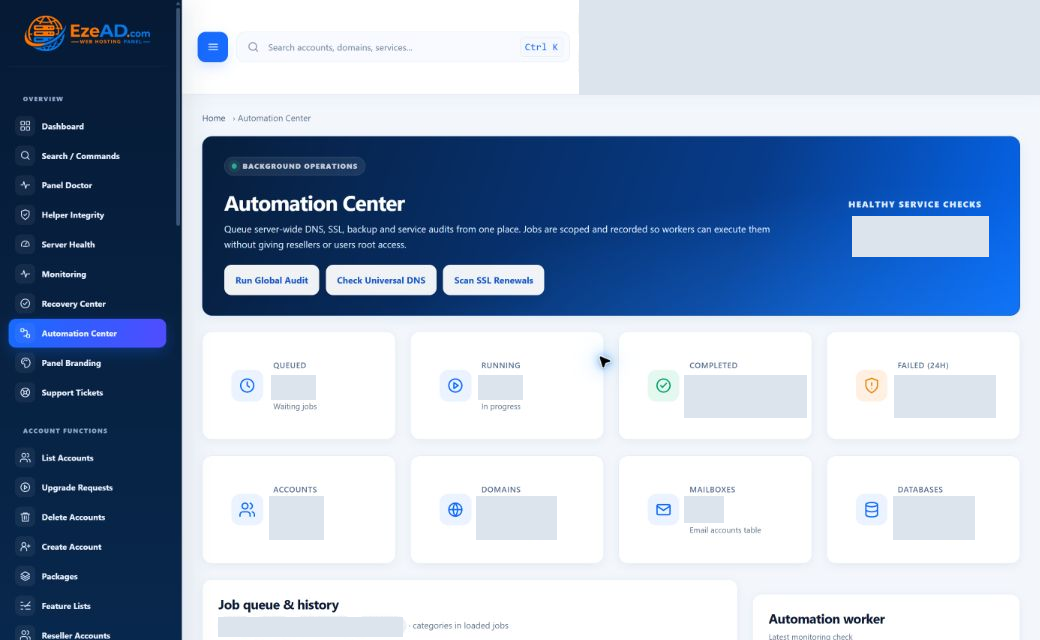
Background processing
Start the backup. Get on with your work.
A queued backup is handled by a background worker, independently of the browser session. Leave the page and return to review progress or history.
Swipe to inspect · tap the image for full context
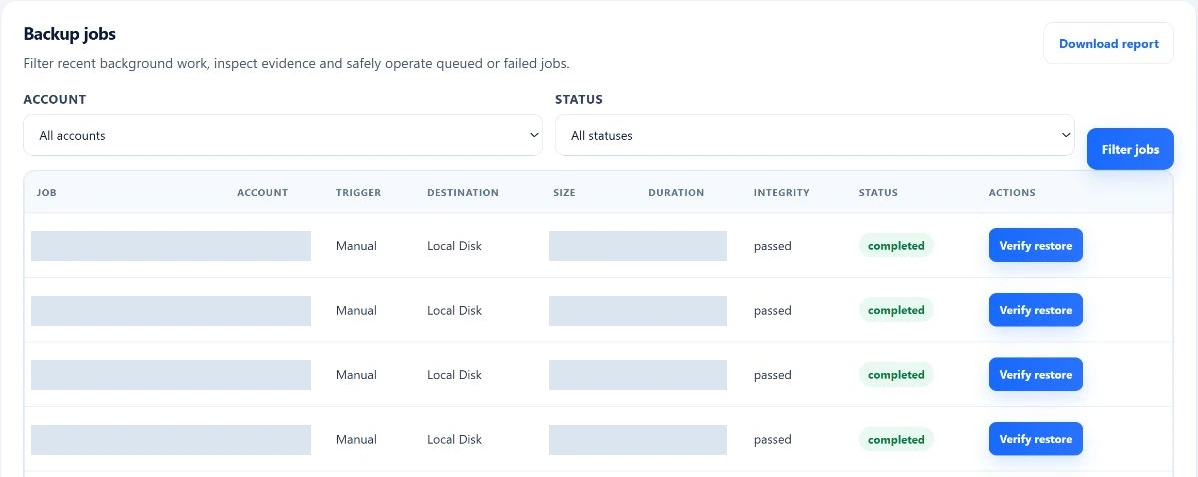
Backup history
Know what happened after you clicked Backup.
Review the record, not just the request. Backup history brings the outcome and its supporting information together.
Follow the job
Status, progress, current step and timing show whether work is waiting, running, complete or failed.
Find the archive
Review the backup type, size and destination to understand what was created and where it belongs.
Inspect the checks
Checksum, integrity time, extraction-test outcome and failure information support the next decision.
Swipe to inspect · tap the image for full context
Supported restore
A backup matters when you can use it.
Choose a completed backup from the account’s restore options to recover supported website files. Ownership, integrity and additional authentication checks protect this operation.
Archive checked
The isolated test checks the manifest and expected website content and SQL exports.
Website validated
After restoring files, verify the site and its application behavior. Database import is a separate recovery task.
Treat application validation as part of a complete backup strategy.
Administrator and hosting customer
The right backup controls for each role.
Administrator
Manage account backup jobs and review policy, history and verification. Authorized root administrators configure remote destinations.
Hosting customer
Protect the account’s own data when the package allows it. Define a schedule, inspect history and use permitted website-file restore options.
Automatic backups
Schedule protection instead of relying on memory.
Choose a frequency, preferred time and timezone. Set the data, destination and number of completed backups to keep. Pause or resume the policy without discarding it.
Your policy, in one place
The scheduler queues due work for the backup worker. An enabled feature is not an enabled schedule.
Storage destinations
Keep the archive where your protection plan needs it.
Two implemented storage paths, each with a different operational role.
Local disk
Store backups on the hosting server. Convenient for account recovery, but a same-host archive does not protect against losing that host.
S3-compatible storage
Configure and probe an object-storage destination. Remote backup processing uploads the archive, reads it back and checks its checksum and extracted contents.
Provider compatibility and destination access must be verified during setup. No SFTP, Storage Box or full-server disaster-recovery capability is implied.
Visible outcomes
A failure should leave something you can act on.
Resource-waiting work is different from a failed backup. Review job status and failure information, address the cause, then use the supported manual retry where appropriate.
Work can wait for suitable server resources before proceeding.
Failure information stays with the job for investigation.
An administrator can retry failed work as a new job. Notifications depend on configured delivery.
A practical recovery example
A website change goes wrong. Have a next step.
An illustrative file-recovery sequence. Choose the appropriate backup and validate the restored application; this is not a promised recovery time.
Open Backups
Review the account’s available archives.
Choose a backup
Check its scope and completion evidence.
Confirm the restore
Complete the required authentication and restore supported files.
Verify the website
Check the application and any separate database recovery.
Restore considerations
Website-file restoration can overwrite current files in matching website roots. The archive test does not import SQL, boot an application or prove the restored website works. Plan database recovery separately and keep a recovery path before replacing current data.
Read the backup operations guide →A little more detail
Good questions. Clear answers.
The practical details behind the product.
What does EzePanel back up?
Selected website files, selected databases as SQL exports, or both with an account manifest. This account-backup scope is not a full-server image and does not imply backup of mailboxes, DNS zones or the operating system.
Can customers create backups?
Yes, when their hosting package enables backups. Customers choose their own account data and available destinations, review history and use permitted restore controls. Administrator access is separate.
Can backups run automatically?
An enabled account policy defines frequency, time, timezone, selected data, destination and retention. The scheduler queues work for the backup worker. The Backups feature being available does not enable a schedule by itself.
Can I restore individual data?
The inspected restore action restores supported website files from a completed account backup, with ownership, integrity and additional authentication checks. Database backups contain SQL exports; this action does not perform database import or point-in-time recovery. Plan and validate database recovery separately.
Which remote destinations are supported?
Local disk and an S3-compatible object-storage adapter are implemented. A permitted administrator configures and probes a remote destination before use. Compatibility must be checked with the selected provider. SFTP and Storage Box are not presented as supported destinations or promised roadmap items here.
What happens when a backup fails?
The job records failure information for review. Administrators can retry a failed backup as a new job, and unclaimed queued work can be cancelled. Resource-waiting jobs are distinct from failures. Notification delivery depends on the configured notification service.
What does the archive restore test verify?
It extracts into an isolated directory and checks the manifest and expected website files and SQL dumps. It does not import SQL or start the website. Validate the restored application separately as part of your backup routine.
One connected hosting platform