
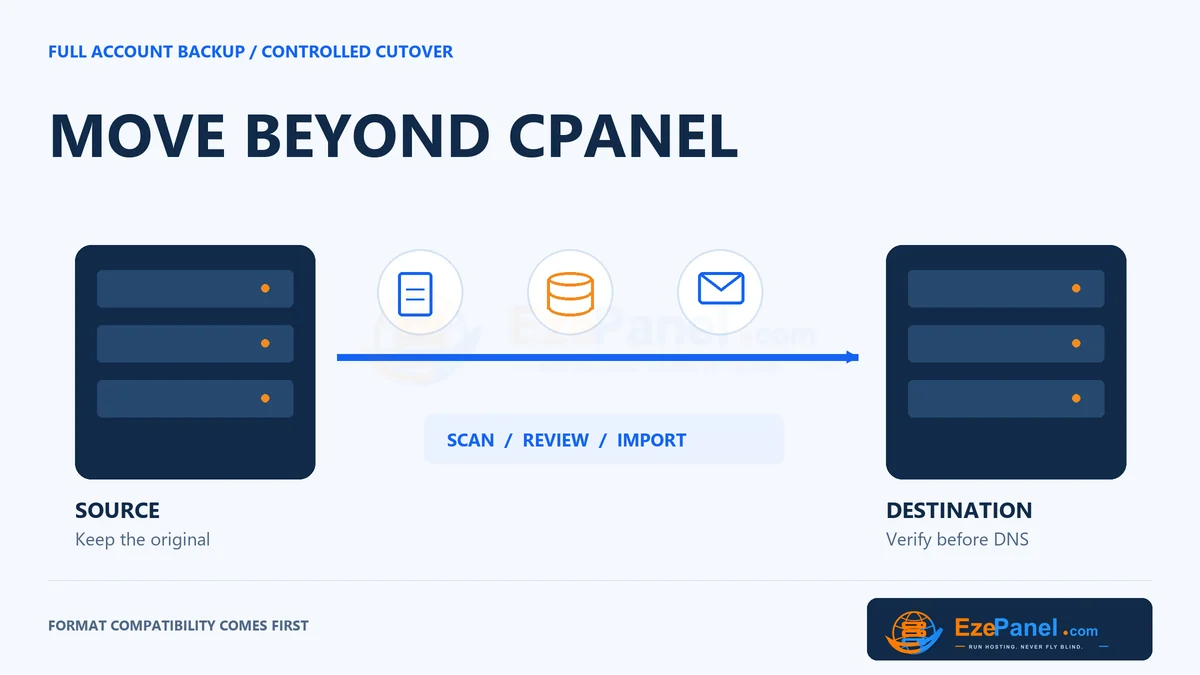
To migrate a cPanel full backup to another panel, first establish what the source archive contains and what the destination actually imports. The filename extension is not a compatibility contract. A full-account archive, a partial home-directory backup and a JetBackup export can all use compressed files while representing different structures and recovery workflows. A careful migration preserves the source, inspects the destination plan and verifies data before changing public routing. This guide follows that sequence, including the supported EzePanel Migration Tool workflow. It does not assume every archive variant is accepted or that moving data can happen without a final synchronization or maintenance window.
Understand what the archive actually contains
A cPanel full-account backup can contain home-directory content, database exports and account-related metadata. Depending on the source and backup options, the archive may also include mail and DNS information. The receiving panel still has to understand and translate the relevant components; extracting files is not the same as provisioning a working hosting account.
cPanel distinguishes full-account restoration from the partial restore operations available through its customer Backup Wizard. Cross-panel migration is another compatibility step. Do not expect a WHM-oriented restoration procedure to apply unchanged to a different product's account model or filesystem layout.
Keep the original archive unmodified. Record where it came from and which account it represents. If you have a JetBackup file, identify its export type and consult the destination's format guidance. Renaming it to look like a cPanel archive does not make it compatible, and a generated test fixture is not evidence that an authentic export will migrate.
Check destination compatibility before uploading
Inventory the source domain names, document roots, PHP versions and extensions, database engines, mailbox count and scheduled tasks. Compare those requirements with the destination's actual supported runtime and package limits. A license with enough hosting-account capacity does not automatically grant an individual account enough databases, mailboxes or storage for the import.
Confirm the receiving workflow's overwrite policy. EzePanel's migration approach uses controlled destinations and review stages; do not assume it safely merges an archive into an existing live website. A new or empty eligible destination avoids ambiguity, but you must still review ownership and conflicts before starting the import.
| Component | Compatibility check | Verification after import |
|---|---|---|
| Website | Domain/root mapping and supported file types | Correct host serves expected content and uploads |
| Database | SQL format, version and destination mapping | Application login, known records and new writes |
| Supported mailbox data and destination limits | Folder/message counts and independent delivery checks | |
| DNS | Supported record types and authority ownership | Intended public answers after deliberate cutover |
Prepare the source and keep a recovery copy
Create the source backup through an authorized workflow and keep an independent copy before changing anything. Record important settings that may not be reconstructed automatically: application secrets, cron timing, external mail routing and custom web rules. Keep secrets in a private store rather than a migration report or support conversation.
Check the destination's free space for the compressed archive, staging and imported data. A small tar.gz file can expand substantially. Confirm the source archive is complete and transport it through the intended protected upload process. An interrupted upload should not be mistaken for a scan failure on a complete archive.
For a dynamic site, choose how to handle data written after the backup was taken. A store accepting orders or a mailbox receiving messages will change while the copy is prepared. Define the final synchronization method and a clear point after which the old application must not accept independent writes.
Use the EzePanel upload and scan workflow
EzePanel's cPanel Migration Tool presents upload, scan, review, import and results stages. An administrator chooses an authorized destination account; a user works within the scope exposed to that account. The file is uploaded privately, and the scanner examines the archive before the operator selects components to import.
Keep upload progress separate from archive acceptance. Once transfer is complete, inspect the saved scan result. A rejected archive needs its specific error and format checked; repeatedly retrying the same incompatible file is not a migration strategy. Unsupported structures and unsafe archive paths should remain blocked rather than being ignored to reach the next screen.
The migration tool's existence does not establish support for every cPanel release, plugin export or JetBackup format. Use the backup-format documentation and the actual scan result for your file. Keep the original available and share only safe diagnostic references if assistance is needed.
Review the import plan component by component
Read the detected source identity and proposed destination mapping before import. Confirm the primary domain, any supported additional names and the website paths selected. Inspect database names and users, mailbox selection and DNS records against your inventory. If something important is absent, resolve it before redirecting customers.
Do not treat every scanned item as automatically appropriate for the new server. Old IP addresses, external service records and source-specific paths may need review. Custom application configuration can retain old database credentials or absolute paths even when the underlying files copied correctly. Keep a record of any intentional manual adjustments.
Review package limits again after selection. Reducing the selected components can change the required capacity, but omitting mailboxes or databases to make a quota check pass can leave an incomplete service. Adjust the legitimate destination package or migration plan rather than bypassing enforcement.
Validate a private destination before cutover
Preview the destination using an appropriate local hostname override or another controlled method. Ensure the intended virtual host answers, not just the server's default page. Check assets, rewritten routes, uploads, administrative login and the application's connection to its mapped database. Use test data and an isolated environment when validating writes.
For databases, compare representative known records and run application-level checks. File counts and checksums can help investigate differences, but they do not prove business data is semantically complete. A successful SQL import can still leave an application pointed at the wrong database or unable to write because privileges differ.
For mail, inspect supported imported folders and messages, then test receiving and authenticated sending separately. Verify DNS records and certificate coverage for relevant hostnames. Keep outgoing notifications or scheduled tasks from running twice while both source and destination copies exist.
Coordinate writes DNS and mail delivery
Choose a deliberate cutover time and record the changes. Website A/AAAA records, MX routing and authoritative nameserver delegation are different changes; modify only the records needed for the plan. A lowered TTL can help future caching behavior, but it cannot erase records already cached elsewhere or guarantee an instant global switch.
Where consistency requires it, pause writes or perform a final synchronization using an approved application procedure. Record the last accepted source transaction and the point at which the destination becomes authoritative. Keeping two independently writable copies after cutover can make rollback a data-reconciliation problem rather than a simple DNS reversal.
Leave the source available for a defined verification period. Watch application logs, mail queues, real customer symptoms and public DNS answers. If rollback is needed, preserve newer destination writes before deciding how to return service; restoring an older backup over them can lose legitimate customer activity.
Use a final migration checklist
A migration is complete when the intended service and data work on the destination, not when the progress bar reaches the end. Retain the archive, mapping decisions, import results and cutover notes privately. These records make later support much easier and help another operator understand what was intentionally excluded.
EzePanel's guided process can organize supported cPanel backup imports into reviewable stages. Rehearse with an authentic backup representative of your workload before committing to a larger move. If a required format or component is unsupported, use a separately reviewed migration path rather than interpreting a partial import as complete success.
- The untouched source archive and a recovery copy are retained.
- Supported format, component scope and destination limits are confirmed.
- Website roots, databases, mail and DNS mappings are reviewed.
- Private application checks include representative reads and writes.
- Late writes, email synchronization and duplicate jobs are handled.
- Public routing changes and rollback data-preservation rules are documented.
Where to go next
Sources & further reading
Official documentation for the topics in this guide. Check current vendor requirements before a purchase or server change.