

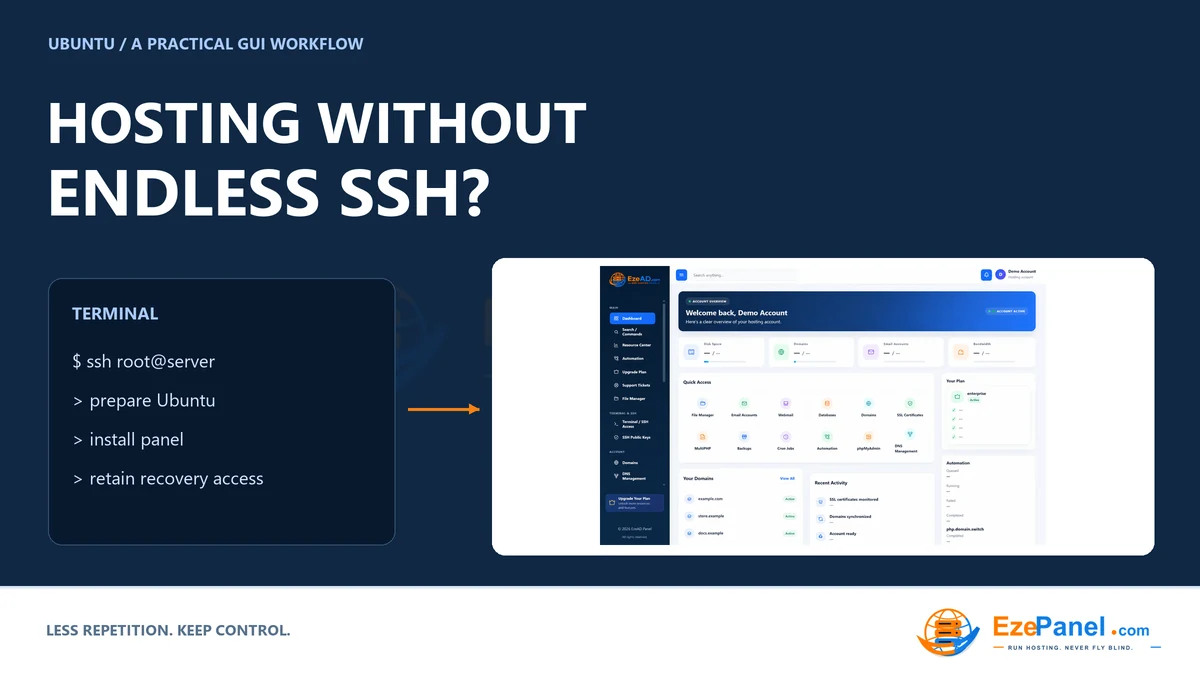
An Ubuntu server web hosting setup with a GUI can make ordinary administration easier: add a website, create a database, inspect PHP settings and follow a certificate request without editing several service files by hand. The useful question is not whether SSH disappears completely. It is which routine tasks become clearer and which server responsibilities you still own.
What a hosting GUI changes and what it does not
A hosting GUI is a web application that coordinates server configuration through authenticated actions. It is different from installing a desktop environment on Ubuntu Server. You normally use a browser on your own computer; the VPS does not need a graphical desktop to manage websites.
The interface can replace many repetitive command-line tasks, but it cannot choose a sound hosting architecture for you. Someone must still manage updates, application dependencies, service exposure, backups and incidents. If you want the provider to own those responsibilities, compare managed hosting support as well as panel software. A subscription to a panel is not automatically a server-management contract.
Understand the services behind the screen
A typical PHP hosting setup connects DNS, an HTTP server, a PHP runtime, a database and certificate management. Local email adds SMTP transport, IMAP access, mailbox storage and mail-related DNS. Each service has its own failure modes; a working dashboard does not mean every customer path is healthy.
In manual administration you configure those relationships directly. A panel stores account context and applies supported changes through its own workers or helpers. This is valuable when the same operation repeats across several sites, especially when different owners need different permissions. It also means configuration should be changed through the supported workflow rather than edited behind the panel's back.
| Task | Manual operating work | GUI workflow to evaluate |
|---|---|---|
| Add a website | Create paths and route the hostname | Owned account, domain form and recorded result |
| Connect PHP | Select runtime, extensions and process settings | Account-scoped PHP controls |
| Create a database | Create schema, login and privileges | Database and user workflow with ownership |
| Enable HTTPS | Issue certificate and configure redirection | Certificate job, status and HTTPS control |
| Investigate failure | Correlate logs, processes and services | Job history and monitoring with access to details |
Prepare a clean supported VPS through SSH
You still need initial trusted access. Provision the operating system through the VPS provider, record its address and verify the SSH host identity through an independent provider console. EzePanel does not install Ubuntu for you. Its current installer targets fresh Ubuntu Server 22.04 or 24.04 x86-64 environments; check the current requirements before starting.
Keep provider-console access available. Do not install over another panel or a production application server as an experiment. Record basic OS, architecture and storage details first. Firewall changes can cut off your current session, so apply them only with a verified recovery route and the provider's network rules in mind.
cat /etc/os-release
uname -m
df -h /
free -h
Use the current customer-portal installation workflow
For EzePanel, register or sign in to the customer portal, choose an eligible trial or paid license, and open Install EzePanel. Use the current authorized command for that license. Do not reuse a copied command from an old tutorial or include a private activation key in a public recording.
Run the command through root SSH as instructed and retain the installer log if it fails. At first Admin login, complete normal license activation, review the EULA and finish server setup. The protected runtime license is delivered through the existing licensing workflow; the issuer must be available for new issuance. If preparation is pending, follow the page status rather than repeatedly submitting the same key.
Create an owner and a useful hosting package
Before adding files, decide who owns the website. The server administrator creates the hosting account and assigns its package. Package choices determine the account's permitted resources and tools; the EzePanel software plan separately governs subscription entitlements. Do not confuse the number of websites with the number of hosting accounts.
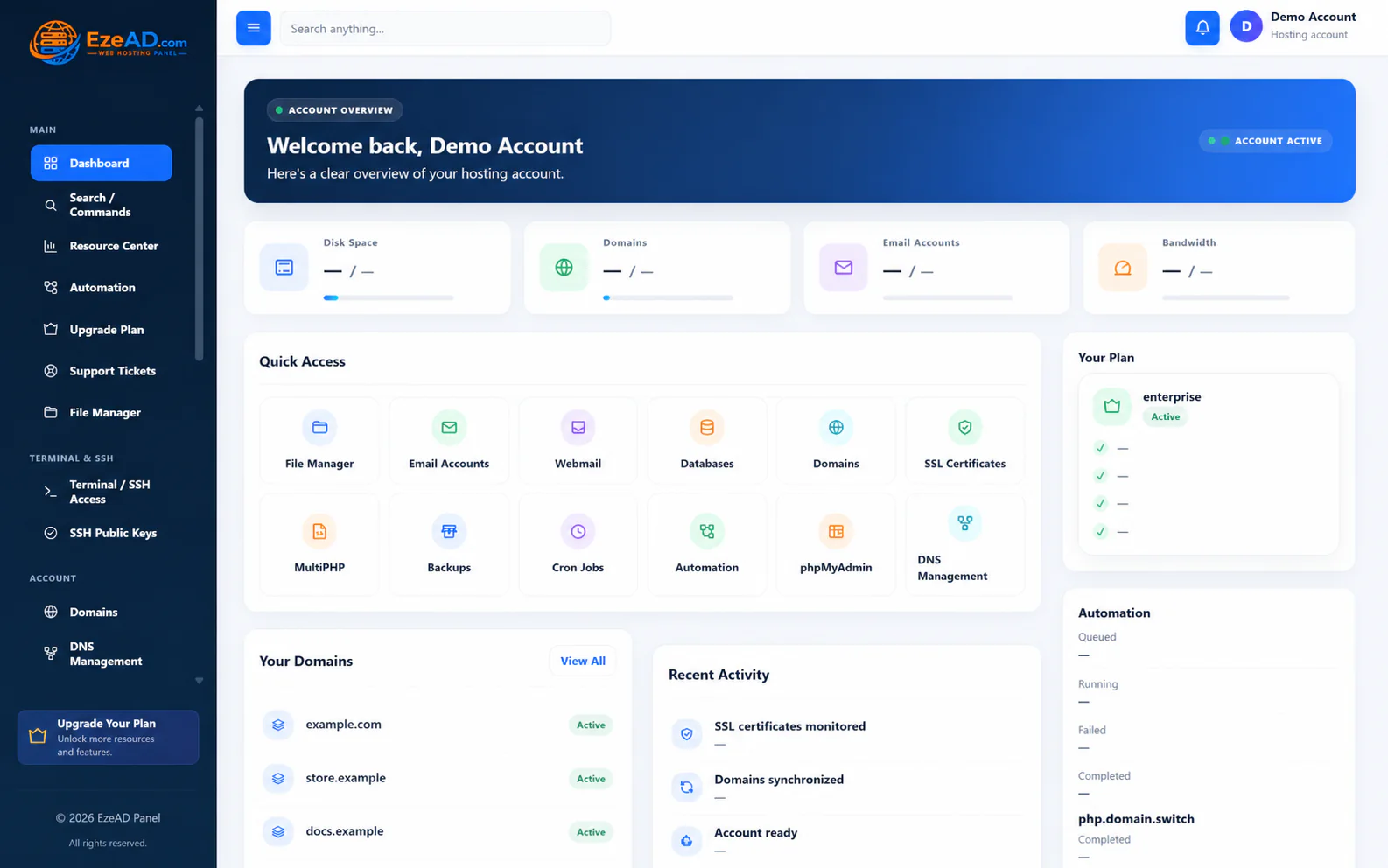
For a first evaluation, use an account you control and a non-production domain. Sign in to its User Panel to check the customer experience. Confirm that account users cannot view unrelated customers' resources. The administrator login is for operating the hosting platform, not a credential that should be shared with every website owner.
Connect the website, PHP and database
Use the domain workflow to choose the intended public directory. Upload the application's actual public files with the permitted file-management method. Framework applications may require a public subdirectory, private environment files, dependencies and scheduled tasks. A successful upload alone does not complete deployment.
Choose a PHP version compatible with the application and confirm required extensions. Create a database and an account-scoped database user, then place its credentials only in the private application configuration. Open phpMyAdmin through the supported account path when you need to inspect or import data. Verify a genuine application query and keep the SQL import size and package allowance in mind.
Publish DNS and finish HTTPS deliberately
Configure DNS at the authoritative provider for the domain. If DNS remains external, a record displayed in the panel is not automatically authoritative on the internet. Match IPv4 and IPv6 answers to the actual service. Keep existing MX records unchanged if email is staying with another provider.
Request the certificate after validation can reach the correct hostname. Check the certificate result, then set the intended HTTPS redirection. A proxy or CDN introduces another route to inspect. Avoid treating the browser's ability to open the panel as proof that the hosted domain has the right certificate or that its application generates correct HTTPS links.
Make ongoing maintenance visible
Use monitoring to connect customer symptoms to the relevant service, process or account. Review failed jobs instead of repeatedly submitting the same action. For backups, choose a schedule and destination, check completion, and prove recovery on a safe destination. A local copy and an off-server copy serve different failure scenarios.
Keep application and OS patching in your maintenance routine. A panel-code update does not automatically update WordPress plugins, arbitrary PHP dependencies or every Ubuntu package. Some maintenance still needs SSH or provider assistance. The goal is fewer unexplained manual changes and better visibility, not a promise that system administration has ended.
How much command-line knowledge is still useful?
You do not need to memorize every service configuration to use a hosting GUI, but a few distinctions make support much easier. Know the difference between the provider console and SSH, the panel address and a hosted domain, and a database export and a full-server snapshot. Keep the information needed to contact the provider when the VPS itself is unreachable.
Record a small operating notebook with your supported OS, panel access URL, DNS authority, backup destination and recovery contacts. Keep secrets in a password manager rather than that notebook. When asking for help, share the operation and its saved error reference instead of passwords or private keys. This lets you use the interface confidently while retaining a practical route to diagnosis when a browser workflow cannot complete.
Choose the right amount of automation
A GUI works well when your team needs repeatable hosting workflows and customers benefit from scoped self-service. Manual administration may be preferable for a specialized stack, an unsupported OS, or an application deployment model outside the panel's supported paths. Avoid forcing a familiar interface onto an architecture it does not manage.
To evaluate Ubuntu web hosting with a GUI, complete the full first-site journey and one recovery exercise. Record the steps your team found clear and the ones requiring support. EzePanel's available trial lets you inspect its actual Admin and User workflows before committing an important workload. Check current limits, installation requirements and support arrangements as part of that decision.
- Install only on a prepared, supported clean server.
- Keep independent SSH/provider recovery access.
- Use customer ownership boundaries from the first website.
- Validate application, DNS, certificate and mail separately.
- Review backup results and retain a tested recovery path.
Where to go next
Sources & further reading
Official documentation for the topics in this guide. Check current vendor requirements before a purchase or server change.